
You can safely move your progress to a new device only if you first link the game on your OLD device.
This step is extremely important - if you link the new device first, the empty progress will overwrite your real one, and it may not be possible to restore it.
To transfer your progress, follow the steps below.
1. Link your progress on the OLD device
Open the game on your old device.
Tap the gear icon (Settings) in the top-right corner of the main screen.
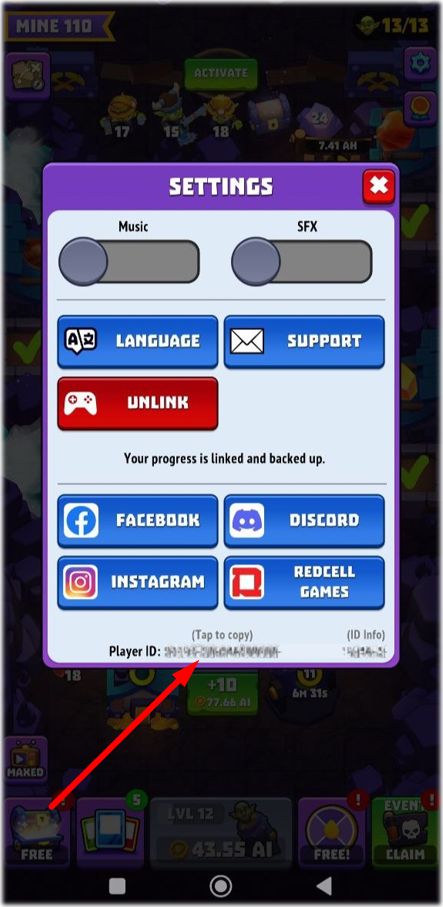
At the bottom of the Settings screen, you will see your Player ID - tap it to copy it (you may need this later).
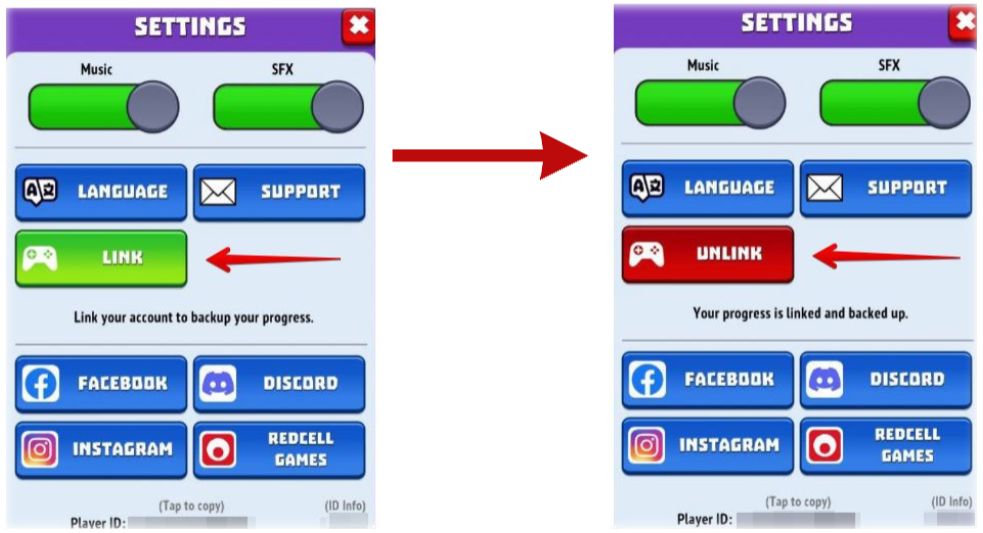
- Press the Link button and connect the game to your Apple ID or Google account.
- After linking, the button will turn red and display 'Unlink'.
- This means your progress has been saved to the cloud correctly.
Do not uninstall the game on your old device until the transfer is complete.
2. Install the game on the NEW device
Download the game from the App Store or Google Play on your new device.
Open the game and go to Settings.
Tap Link and connect the game to the same Apple ID or Google account that is linked on your old device.
If everything is correct, the game will automatically find your saved progress and load it onto the new device.
3. If the game does not load your progress
Contact Support
Please send us:
Your Player ID from the old device
Your Player ID from the new device
How to find your Player ID:
Tap the gear icon (Settings)
Scroll to the bottom - your Player ID is displayed there
Tap it once to copy
We will manually assist you in restoring your correct progress.
Important
We currently do not support playing on multiple devices at the same time - it can cause progress loss.
After transferring your progress to the new device, it is not recommended to continue playing on the old one.
If you are moving between iOS and Android, please see the article “How to sync progress between iOS and Android devices”.