
💡 If you have already lost access to your account and want to get it back, please contact our Support team directly for assistance.
To make sure your game progress is safe and can be easily restored in the future, we highly recommend linking your game to a cloud account.
Step 1: Check Your Device Settings
Before launching the game, ensure that your device is properly connected to your gaming network:
Android: Make sure the Google Play Games app is installed on your device and that you are logged into your profile.
iOS: Ensure that you are signed into your official Game Center account in your device settings.
Step 2: Connect Your Account In-Game
Open Gold and Goblins and tap the Settings menu (the small gear icon in the top corner of the main screen).
Tap the Link button.
Select your Google or Apple account to complete the process.
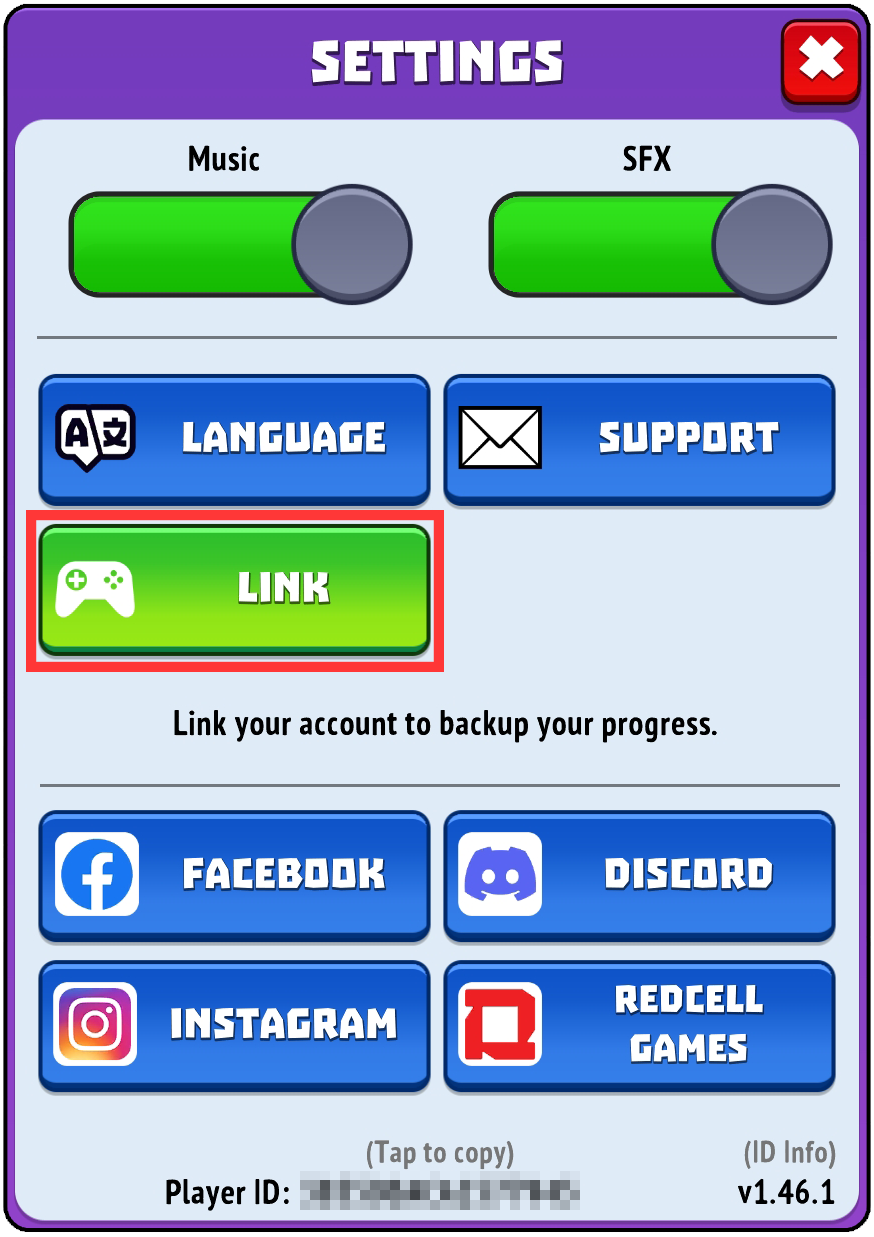
After selecting your account, please wait a couple of seconds. The button will turn red and display the text Unlink. This confirms that your progress is successfully secured in the cloud!
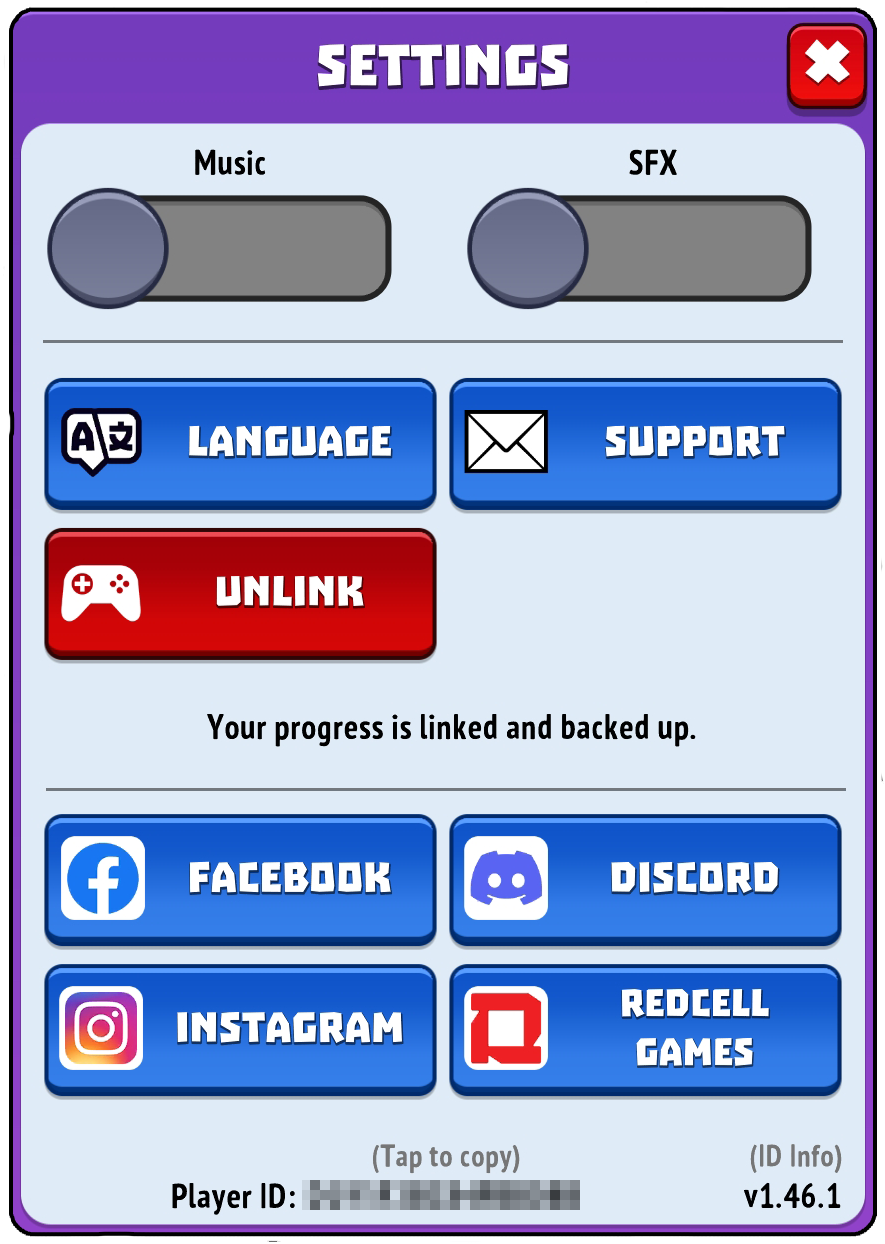
Note: Once linked, your progress can be restored whenever you change or reset your device within the same platform (Android to Android, or iOS to iOS).
Troubleshooting Linking Errors
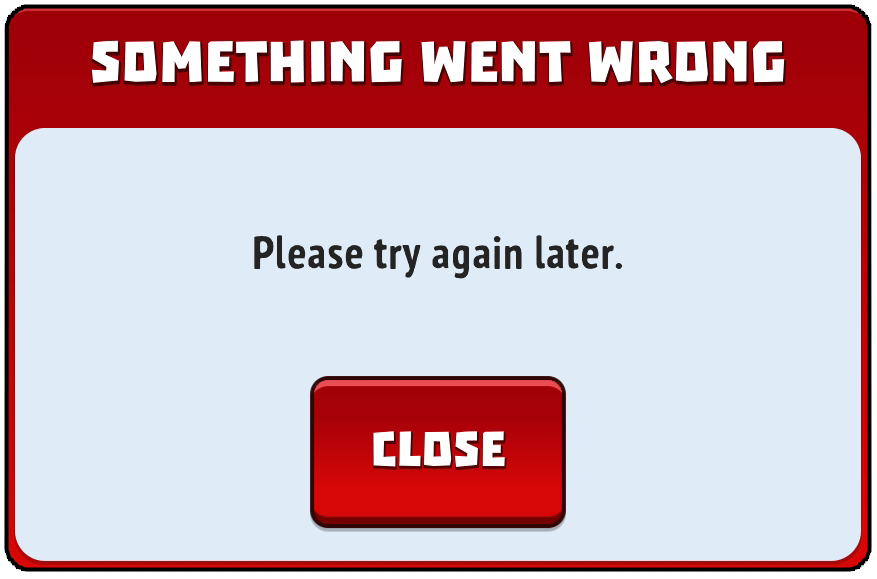
If you encounter an error or the game refuses to connect to the cloud, please follow these troubleshooting steps:
Open the Google Play Games (Android) or Game Center (iOS) app directly to verify you are logged into the correct active account.
Clear the cache for the game, your gaming service app, and the Google Play Store / App Store via your device settings.
⚠️ Important: Only clear the cache, never the game data, or you might permanently lose your current local progress!
Switch your internet connection type (from mobile data to Wi-Fi, or vice versa).
Wait a short while. Connection issues are sometimes temporary and can resolve themselves automatically after a while.
If these tips do not help or you experience any other issues with your account, please do not hesitate to contact our support team directly.