
Issue Description
Exchanging your time to watch promotional videos from our partners is an excellent way to secure free materials, operational multipliers, and currency caches. However, if a video stream suddenly freezes midway, crashes your application back to the home screen, refuses to display the "X" close button upon completion, or runs entirely but fails to credit your reward, the ad playback engine has desynced. This technical hitch occurs when data packets drop during the final transaction handshake between our advertising partners and your local game profile.
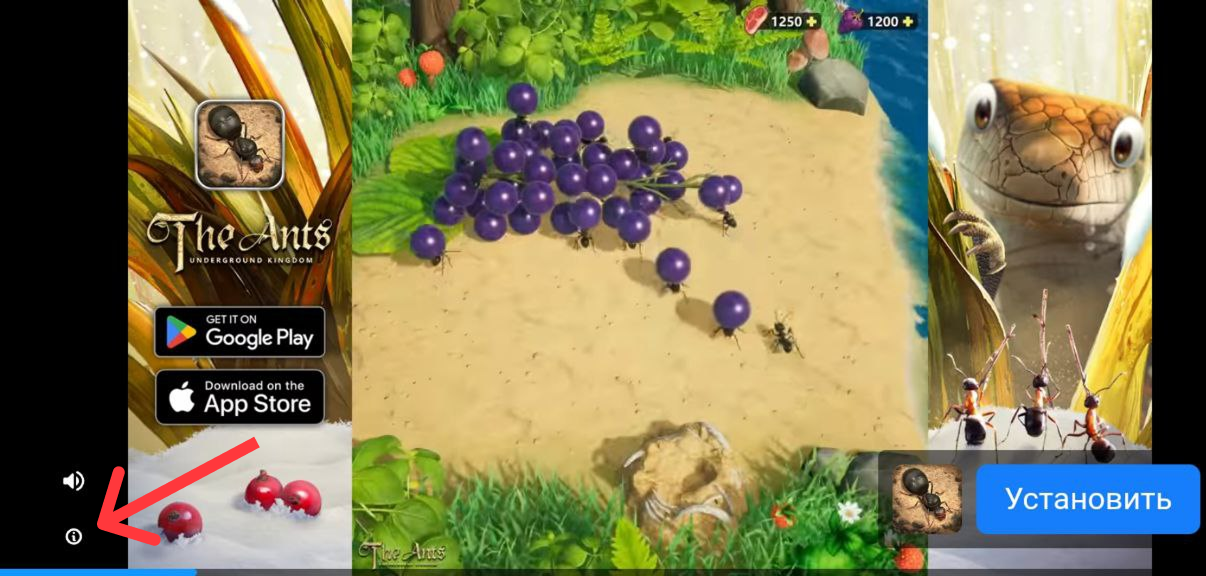
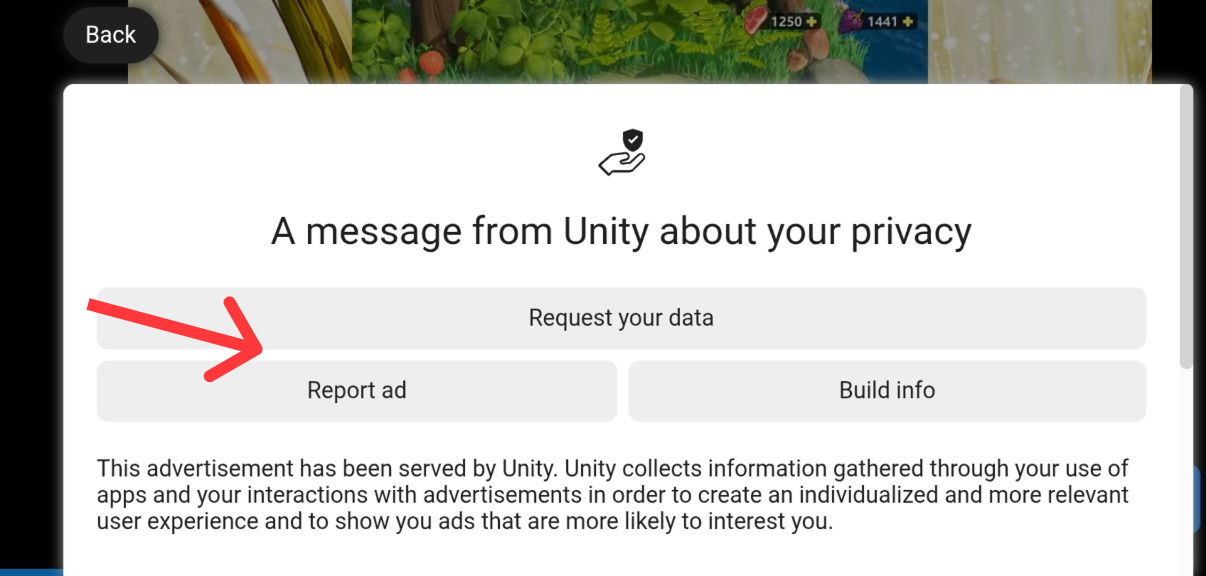
Troubleshooting Steps & Direct Reporting Protocols
Because we integrate multiple external advertising networks to supply promotional video inventory, resolving these issues requires pinpointing the exact provider responsible. Use these specialized technical reporting methods to flag a broken stream:
1. Direct Ad Provider Reporting (Fastest Resolution)
Most modern video players feature built-in, native telemetry reporting tools. Flagging the creative directly through its host network ensures immediate automated removal:
While the problematic ad is active, frozen, or completed on your screen, locate and tap the small "i" (Information) icon or privacy badge typically positioned in one of the corners of the frame.
Tap the native Report Ad button within the provider’s information pop-up window to send an immediate network log directly to the ad network's moderation team.
2. Storefront Compliance Escalation
If the provider's information window lacks an automated report button, you can escalate the technical violation through your official mobile app store:
For Android (Google Play Store): Navigate to the official Lumber Inc page → Scroll down to the reviews area → Tap "Flag as inappropriate" → Select "Ads" or "Contains ads" and submit your report.
For iOS (Apple App Store): Open the official Lumber Inc page → Scroll down past the data descriptions → Tap "Report a Problem" → Choose the relevant ad-performance infraction category from the menu.
How to Submit a Diagnostic Ticket
If none of the direct storefront or network reporting options are available on your screen, our internal engineering team will step in to identify the broken creative and manually remove it from our game files.
Open your in-game settings panel, tap Help, and submit a diagnostic ticket containing the following critical verification details:
A Clear Screenshot of the Broken Ad: Capturing a visual snapshot at the exact moment it freezes, stalls, or fails to award your items is vital.
The App/Product Name: Ensure the screenshot or your text explicitly details the exact name of the product or mobile application that the video is actively promoting.
The Exact Behavior: State whether the ad crashed the app, froze your screen, or completed without giving your reward.