
Offer Overview
The Lucky Lumber Offer is a premium, high-value commercial bundle tailored for players looking to accelerate their sawmill expansion while securing extra rolling opportunities in parallel mini-games. This upgrade permanently enhances your factory's production yield, protects your background passive income during extended absences, and grants a daily recurring bonus to boost your operational resource accumulation.
Product Value & Core Mechanics
As a comprehensive account modification status, the components of this promotional package register across multiple sectors of your profile. Upon successful confirmation of your purchase transaction, the following perks are instantly applied:
Revenue Doubler (Income x2): Your primary sawmill baseline revenue experiences a permanent doubling effect, applying an automatic x2 income multiplier across all operational processing lines.
Extended Offline Limit (+6 Hours): Your base background passive income collection window receives an immediate +6 hour extension. This stretches your total idle earning capacity from the default 2 hours to 8 hours total, safeguarding your profits while you are away from the application.
Daily Dice Multiplier (+1 Free Roll): Your active mini-game inventory updates automatically to award you +1 extra free Dice roll every single day, allowing you to clear board milestones at an accelerated pace.

Operational Boundaries
To avoid confusion regarding your premium investments, please note that the financial multipliers and time-extension bonuses granted by this specific bundle are valid only at your main sawmill floor. They do not transfer to modify parameters inside the standalone seasonal events or your residential Lumber Village ecosystem.

Verification Checklist
If you have completed your payment and want to verify that the upgrade is fully enabled on your account, use the following diagnostic sequence to confirm it is running correctly:
Locate the main sawmill dashboard.
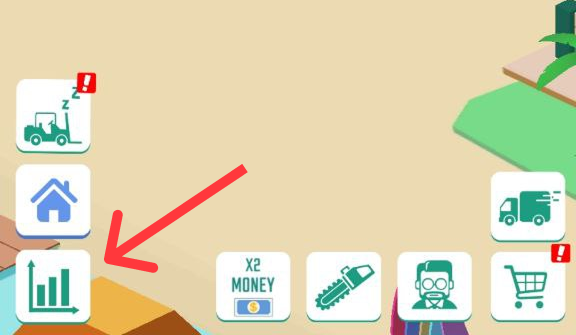
Tap the Statistics button (represented by the analytical chart icon located in the bottom-left corner of your interface).
Review your running technical parameters. If the upgrade has been properly applied by the system engine, your Offline Limit Timer will explicitly display 8 hours instead of the standard 2-hour default baseline.
