
Issue Description
While the selection of promotional campaigns shown on your sawmill floor is automatically filtered to ensure safety, third-party ad networks can occasionally push problematic creatives. If you come across an advertisement that is graphic, highly offensive, completely misleading, or structurally broken, you can take action. Our team is committed to keeping the game safe, and we have established pipelines to block and permanently remove these malicious creatives from our ad pool.
Troubleshooting Steps
Depending on where you encounter the issue, you can flag the rogue ad either directly through your official platform storefront or by submitting a ticket to our internal engineering team.
Method 1: Flagging Through the Official Platform Storefronts
If you are unable to access our in-game reporting interface, you can report the offensive ad compliance violation directly to Apple or Google using their native storefront tools:
For Google Play Store (Android Devices)
Close the game and open the Google Play Store application.
Search for Lumber Inc and tap on its official store page.
Scroll down past the reviews to locate and tap the Flag as inappropriate section.
Select "Ads" or "Contains ads" as your primary reporting reason, then follow the remaining on-screen prompts to submit your compliance ticket to Google.
For Apple App Store (iOS Devices)
Close the game and open the official iOS App Store application.
Search for Lumber Inc to locate our official application page.
Scroll down toward the bottom of the page description and tap on "Report a Problem".
Log in with your Apple ID credentials if prompted, and select the appropriate ad-related compliance violation reason from the drop-down menu.
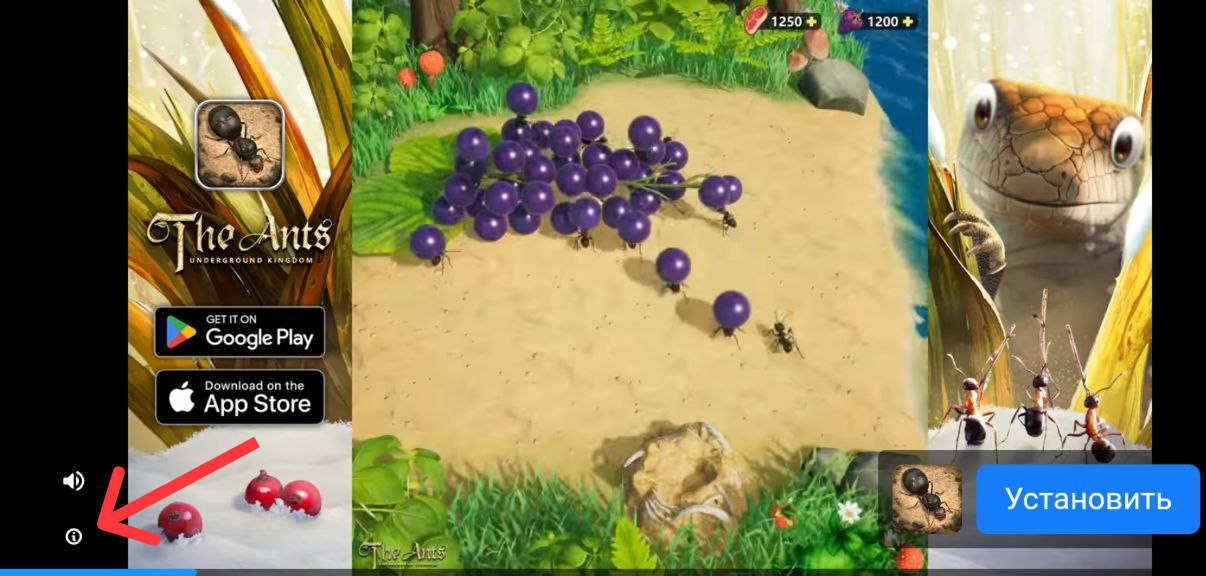
Method 2: Submitting a Ticket to Our Support Team
To allow our internal engineering team to locate the specific digital signature of the rogue ad creative and ban it manually from our local game servers, please contact us directly. Open your in-game settings panel, tap Help, and provide our agents with the following three critical verification details:
A Clear Screenshot of the Ad: Capture a snapshot of the visual layout while the problematic ad is actively running on your screen.
The Name of the App/Product: Identify the specific brand, product, or mobile application being advertised in the video.
The Target URL/Destination Link: Copy or record the web link where the ad attempts to redirect you. This tracking URL can usually be uncovered by tapping the small Information icon ("i") or privacy badge typically located in one of the corners of the running video frame.
Tips and Strategies
Don't Tap Close Automatically: If you see an offensive ad, try to safely locate and tap the "i" info icon before closing out the frame. Obtaining that exact tracking web link is the single most effective piece of data our engineers can use to find the source network and permanently block the creative for all players globally.
Keep Your Screenshot Software Ready: Malicious ads often skip quickly or auto-close when they finish. If an advertisement strikes you as inappropriate, capture your screenshot immediately while the video is playing to ensure the brand name and creative style are clearly documented.