
Issue Description
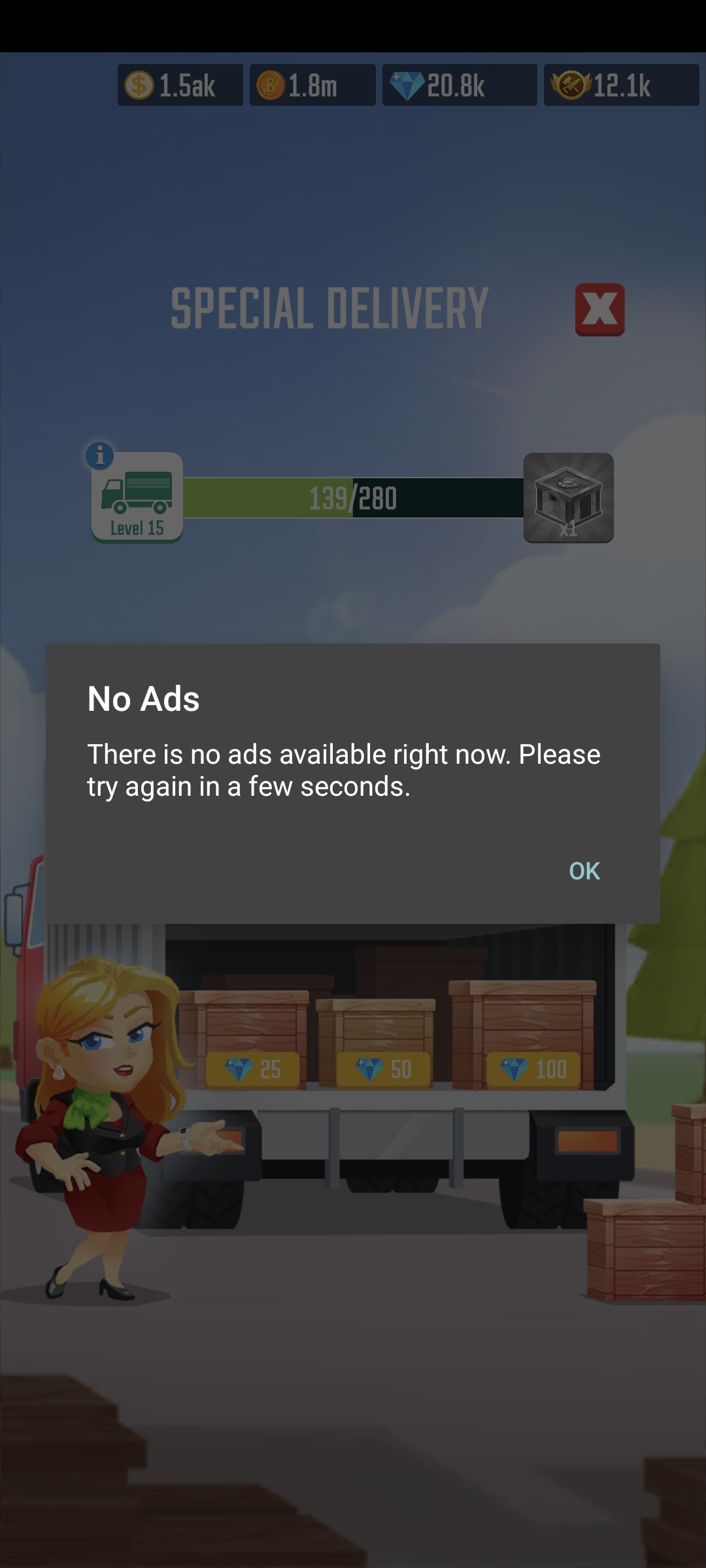
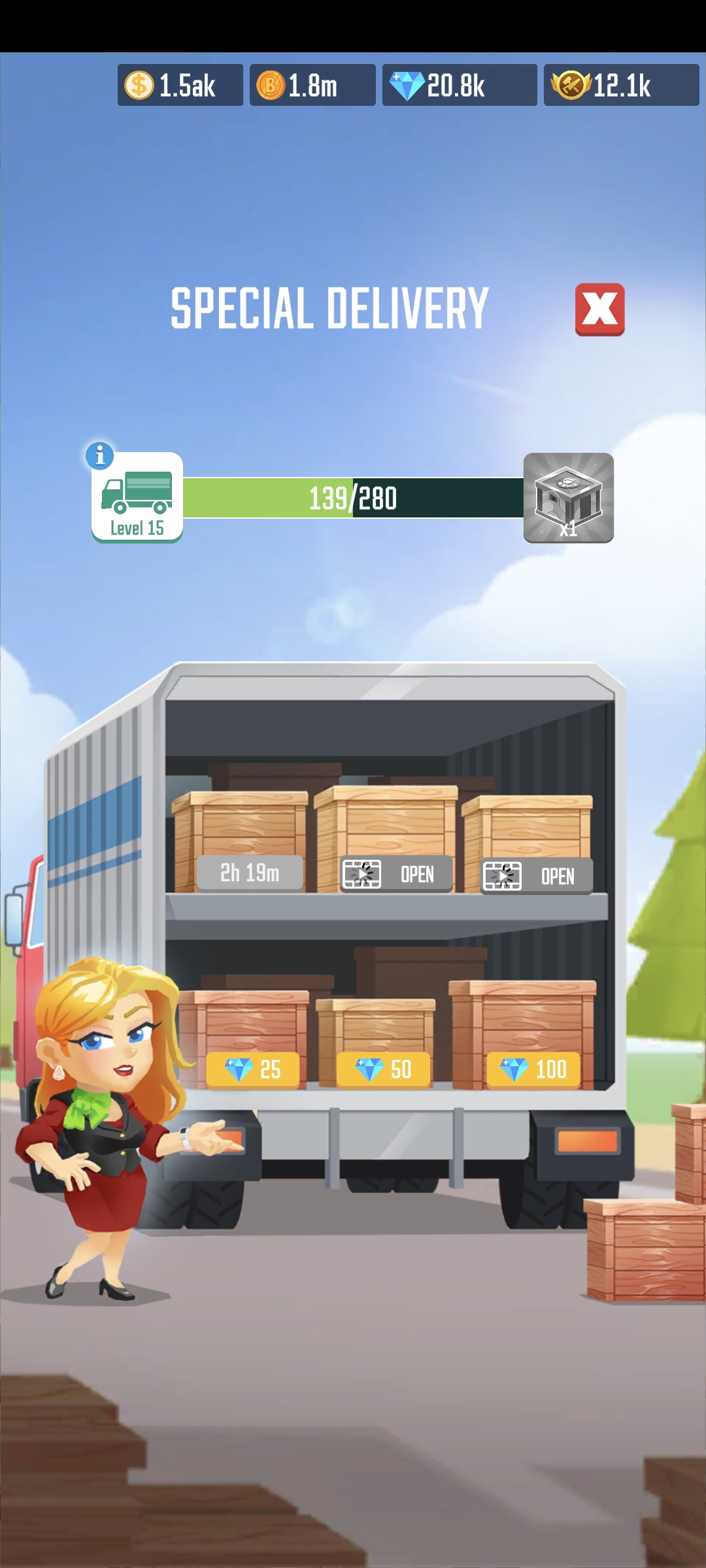
Many vital progression mechanics and bonus multipliers on your sawmill floor rely on promotional video streams. If you encounter an operational freeze where your ad triggers display a greyed-out button, a grey button with a continuous spinning loading wheel, or throw an explicit "No Ads available" system alert pop-up, your client is experiencing a network or cache blockage.
Root Causes & Quick Technical Fixes
This technical hitch is caused by specific client-side or environment bottlenecks. Go through the following optimization steps to restore your connection to the global ad deployment servers:
Unstable Internet Connectivity: Video streams require sustained, high-bandwidth connections. A brief packet drop will cause the server request to time out.
The Fix: Verify your signal strength. Try cycling your router, or toggle your device between Wi-Fi and mobile data to establish a more stable route.
Active VPNs or Ad-Blocker Software: Privacy protection apps, local DNS filters, and virtual private networks frequently block the specific tracking domain lines used to fetch video assets.
The Fix: Completely turn off any active VPN configurations, security proxies, or local ad-blocking software, then reboot the application.
Critically Low Device Memory/Storage: Your operating system requires dedicated storage headroom to download and cache video files before they play.
The Fix: Audit your phone or tablet's internal drive. Free up memory by clearing your system cache or deleting unused, bulky files and applications.
Outdated Software Frameworks: Running an obsolete version of the game client or mobile operating system causes API mismatches with ad networks.
The Fix: Visit the Google Play Store or Apple App Store to download the latest available game patch, and check your system settings for any pending OS updates.
Restricted Application Permissions: If your device settings have blocked the application from accessing mobile networks or background data syncing, ads will fail to load.
The Fix: Open your device’s application manager settings, locate Lumber Inc, and ensure all network, storage, and data usage privileges are set to allowed.
Temporary Regional Server Exhaustion: Ad networks operate on inventory pools. Occasionally, there may simply be a temporary shortage of available promotional campaigns assigned to your specific geographical region.
The Fix: Close the menu, wait a few minutes, and try tapping the button again later once the server inventory refreshes.
Step-by-Step Reinstallation Protocol
If you have diligently verified all the parameters above and the ad player remains permanently frozen, a clean installation is required to clear corrupt internal cache data. Follow this precise sequence to safeguard your file data:
Launch the game and verify that your profile is successfully linked to your global Google Play Games or Apple Game Center cloud account via the settings menu.
Completely uninstall Lumber Inc from your device.
Open your platform’s app store, download a fresh copy of the game, and complete the introductory cloud restoration prompt.
When to Contact Support
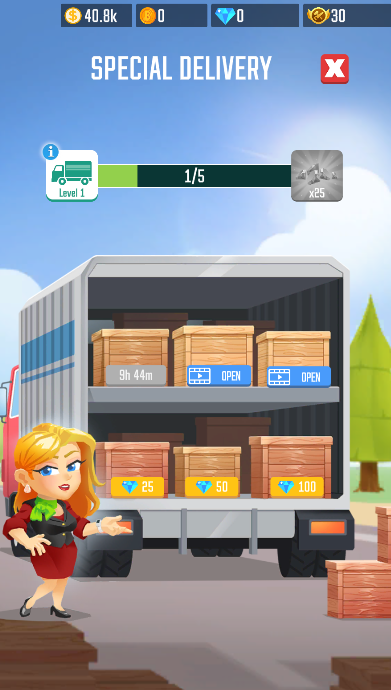
If your interface displays a blue, active ad button that visually registers your physical touch but completely refuses to execute or launch the video window upon being tapped, this points to an internal script error.
Please reach out to our technical support team immediately via the in-game "Help" widget. When filing your report, provide our engineers with your exact device model, current OS version, and your approximate geographical location to speed up the investigation.